How to Delete Gmail Attachments Without Deleting the Emails
Free up Google storage by deleting or downsizing Gmail attachments.

Gmail has no built-in way to delete an attachment while keeping the email. To recover the storage the attachments use, you have a few options: the quickest is a tool like Unattach, which removes or downsizes attachments in bulk on any device. You can also use a desktop email client, forward the email to yourself without the file, or simply delete the whole email if you no longer need it. This guide covers each of these options, starting with the easiest.
Why keep the email at all? Deleting whole emails recovers storage, but also throws away the most valuable part, the text, which takes up very little space. Keeping the email and dropping just the attachment is almost always what you actually want.
Can you delete attachments in Gmail without deleting the email?
Not directly. Gmail offers no native option to remove an attachment from an email while leaving the email in place. This is a limitation that Google itself acknowledges in its help forums. There are four ways around it:
- The easiest and fastest: use Unattach to remove or downsize attachments across many emails at once, on any device, while keeping the emails.
- Use a desktop email client (Apple Mail, Thunderbird, or Outlook) that can remove an attachment from an email. Slow, since you can process one email at a time on a desktop computer, and with some problems.
- Forward the email to yourself without the attachment, then delete the original. No software is needed, but it's manual, and it loses the original sender and date.
- Delete the whole email. If you don't need the email at all, this is the simplest option, but you lose the text, too.
Remove attachments in bulk with Unattach
We built Unattach for exactly this. It follows Google's API user data policy, and your emails flow only between Gmail's servers and your browser. They never touch our servers. Unattach has over 14,000 users, many positive reviews, and a free plan.
To demonstrate how Unattach works, we create a test email with the subject "mona lisa painting" and attach a 1.3 MB picture of Mona Lisa, a JPEG named mona-lisa.jpg. In Gmail's web interface, the email looks like this:

We sign in to Unattach and search for has:attachment mona lisa in the app's Advanced Search (which returns exactly the same results as Gmail's web interface). We then select the email (by ticking the box to its left), and enable the "Remove attachments" option.
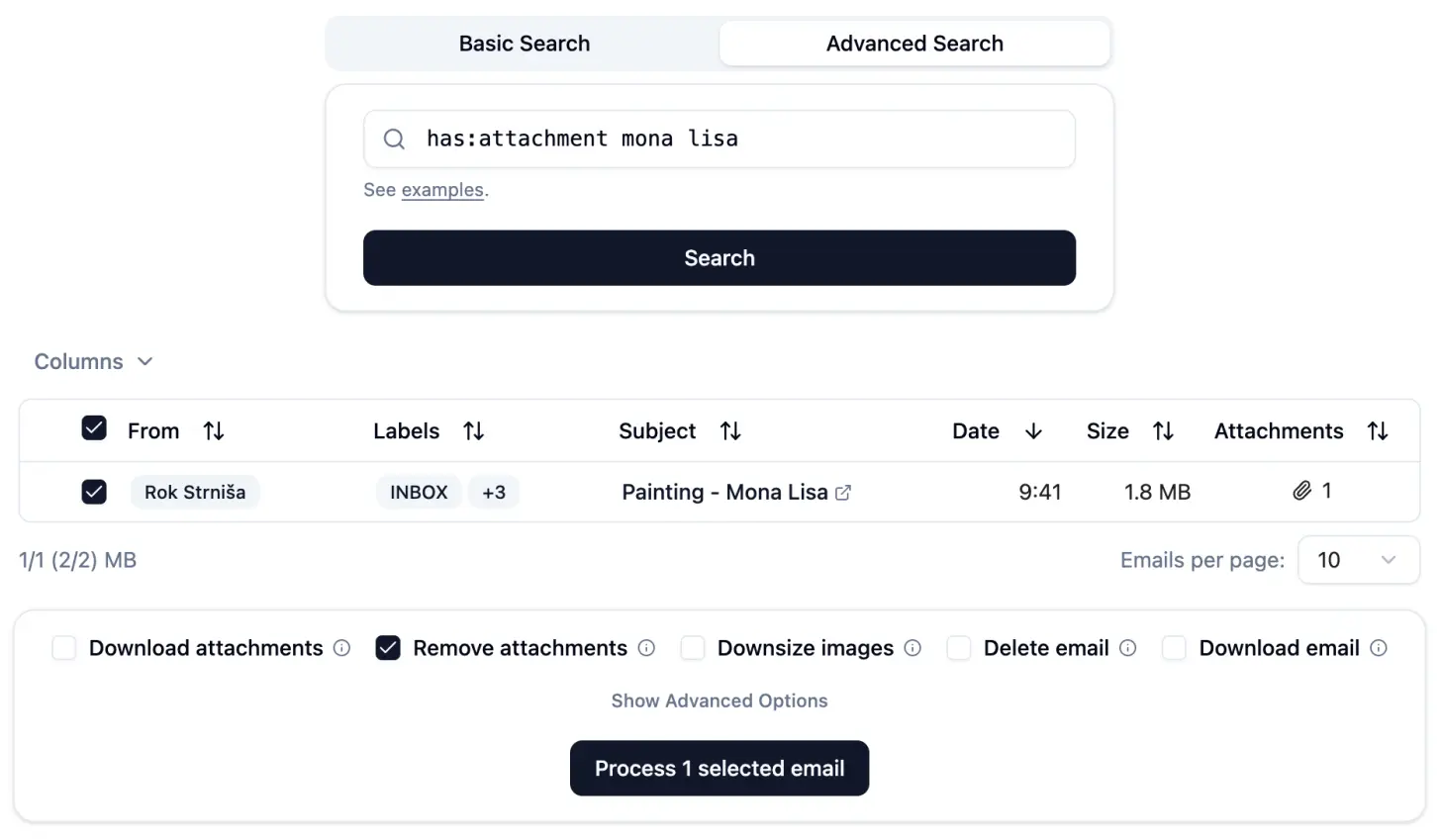
When we press "Process 1 selected email", the app downloads the selected email from Gmail to the browser, removes the attachment from the in-memory copy, inserts the modified copy back into Gmail, and moves the original email to Gmail's Bin (called Trash in some countries).
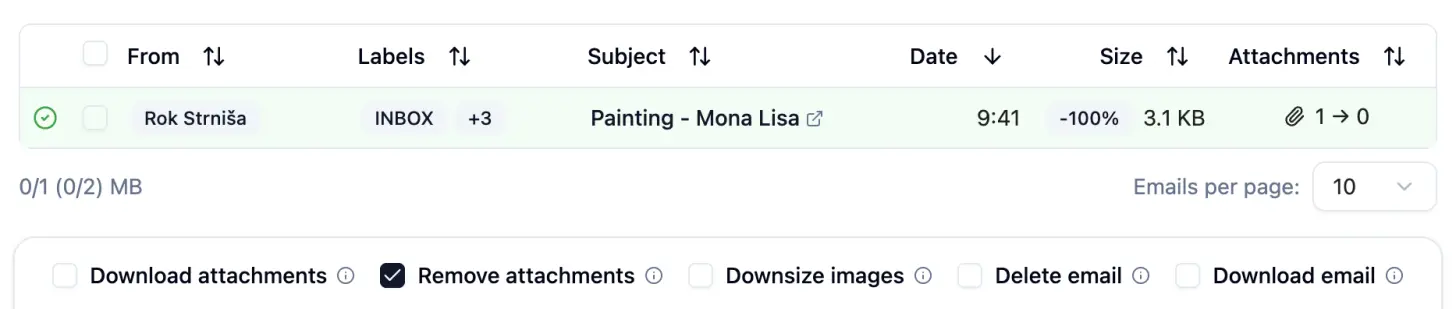
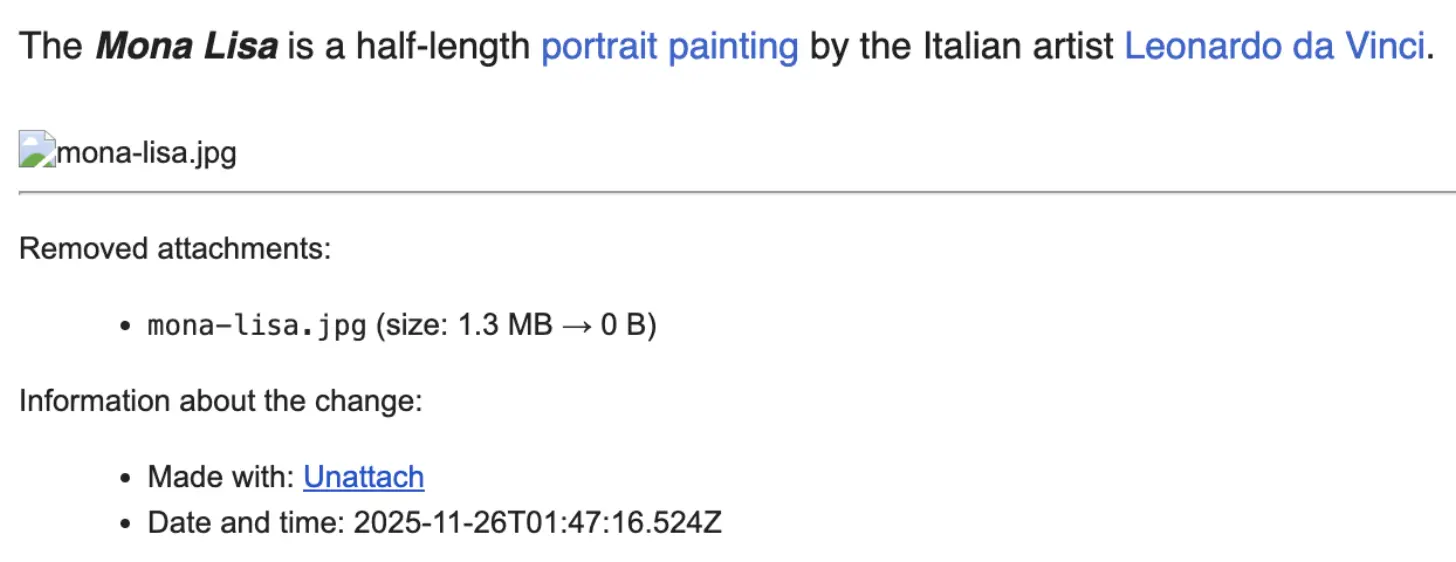
If we now open the email in Gmail's web interface (by clicking its subject in the app), we can see that the attachment has been removed and that the app added a note about the change (this can be disabled in the app's advanced options):
The real advantage shows up with many emails. Instead of processing one email, you can select hundreds at once. For example, you can remove the attachments from every email with an attachment over a chosen size in a single pass, while the emails stay in your inbox.
Downsize images and PDFs instead of deleting
Sometimes you want to keep an attachment, just not at full size. Unattach can downsize images and PDFs (PDFs are shrunk by downsizing the images inside them), so you free up storage without removing the attachment.
If we ask Unattach to downsize rather than delete the Mona Lisa attachment, it reduces the resolution and quality of the image (both configurable in advanced options), which in turn cuts its size by 90%.
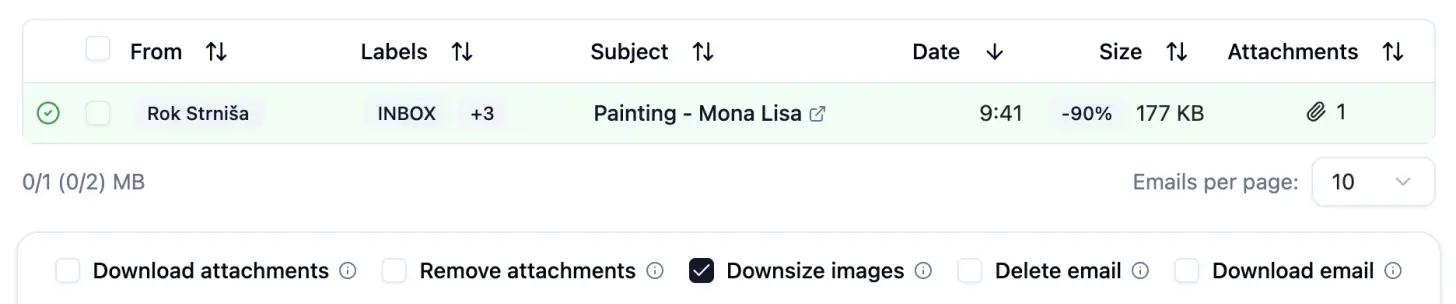
When we view the email again in Gmail's web viewer, it looks the same as the original, except that the image's resolution and quality are lower:

How to find your largest attachments
Whichever method you choose, it makes sense to start with the largest emails. In Gmail's search bar, or in Unattach's Advanced Search, type has:attachment larger:10M to list every email with an attachment over 10 MB, and change 10M to any size you like. From there, you can remove or downsize them with Unattach, or delete the ones you no longer need. Our guide to finding large attachments in Gmail covers the search and its variations in detail; see Gmail's search reference for the full operator list.
Remove attachments with a desktop email client
If you would rather not use a dedicated tool, some desktop email apps can remove an attachment from an email while keeping the email. This is slower and more awkward than Unattach, since you need to process one email at a time on a desktop computer, but it uses software you may already have.
- Apple Mail (Mac) is the most reliable of the three. Select an email, then choose Message → Remove Attachments. Mail keeps the email, notes that the attachments were removed, and syncs the change back to Gmail. Save anything you want to keep first, since the attachments will be deleted and can't be recovered.
- Thunderbird (Windows, Mac, Linux) can remove attachments too. Open the email, right-click an attachment, and choose Delete (or Detach, which saves a copy first). Watch out for a long-standing problem: because of how Gmail's IMAP works, Thunderbird can leave behind a duplicate email that still contains the attachment. Check Gmail's web interface afterwards to confirm.
- Outlook (Windows) can do this only in "classic" Outlook: open the email, click the dropdown next to the attachment, choose Remove Attachment, and save. The newer Outlook for Windows doesn't support removing individual attachments. In that app, your only option is to delete the whole email.
The drawback is the same for all three: you have to set up your Gmail account in a desktop app, work through emails one at a time, and there's no downsizing.
Delete or forward manually (without extra software)
If you want to avoid installing or connecting anything, there are two manual options:
- Forward without the attachment (keeps the text). Open the email, click the More icon (three dots), choose Forward, remove the attachment in the compose window, send the email to yourself, then delete the original. The forwarded copy keeps the text but loses the original sender, date, and formatting, and you have to repeat the process for every email.
- Delete the whole email (fastest, but loses the text). If you don't need an email at all, just delete it. Use the
has:attachment larger:10Msearch query (or similar), select the results, delete them, then empty your Bin to free the storage.
What happens after you remove an attachment?
By default, Unattach moves the original email to Gmail's Bin, so you can easily undo any change. Gmail permanently deletes anything that has been in the Bin for 30 days, and the storage is freed once the original email is permanently deleted.
If you don't want to wait 30 days or empty the Bin yourself, you can tell Unattach to permanently delete the original email instead of moving it to the Bin. This can be enabled in the app's advanced options.
Frequently asked questions
Will I lose the email if I remove its attachment?
Can you delete all attachments in Gmail at once?
Can I remove Gmail attachments on my phone?
Does removing attachments actually free up Google storage?
The bottom line
Gmail won't let you remove an attachment from an email, but you can use Unattach to remove or downsize attachments across your whole inbox while keeping the emails intact. The desktop client and manual methods work, but they're slow and take many steps. Sign in to Unattach and try its free plan.